Managing User Access to Edge
If you need to create a new login for a user, follow this page.
Where roles are managed
Access to Edge is decided by the user's EVC-Net account. When a user logs in to EdgeManager, EVC-Net returns the Edge roles that belong to the user's EVC-Net roles, and EdgeManager applies them to every Edge the user can reach. There is no per-Edge user table; a user has the same role on all their Edges.
Roles are granted in EVC-Net under Settings → Roles. Each Edge capability is a row on the Roles page and is granted by ticking its Edit checkbox. The other checkboxes have no effect for these capabilities.
The roles
| Role | What the user can do | How to grant it |
|---|---|---|
Viewer (EDGE_VIEW_ONLY) | Full user interface with all insights, but nothing can be changed. | The default. Every user without an Edge capability gets this role. |
Installer (EDGE_INSTALLER) | Configure the Edge. | Tick Edit on Edge - Installer, or on Charge points - Menu, which existing charge point administrators already have. |
Grid control (EDGE_GRID_CONTROL) | Read everything, change grid limits only. Meant for external systems and energy management systems using the API. | Tick Edit on Edge - Grid control. |
Admin (EDGE_ADMIN) | Configure the Edge and access advanced features, including future ones. | Tick Edit on Edge - Admin. Reserved for Last Mile Solutions system users. |
A user can hold more than one role; the most permissive one applies.
A role change in EVC-Net takes effect at the user's next login to EdgeManager.
Please keep in mind that there should always be someone with the Installer or Admin role for your Edges. If nobody has it by mistake, contact Last Mile Solutions support.
Switching between user roles
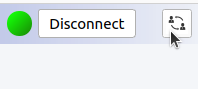
For people with the Installer or Admin role it may still be convenient to use the simplified view that a viewer has. To switch to another view, use the button on the top-right corner of the EdgeManager.
Updated 30 days ago