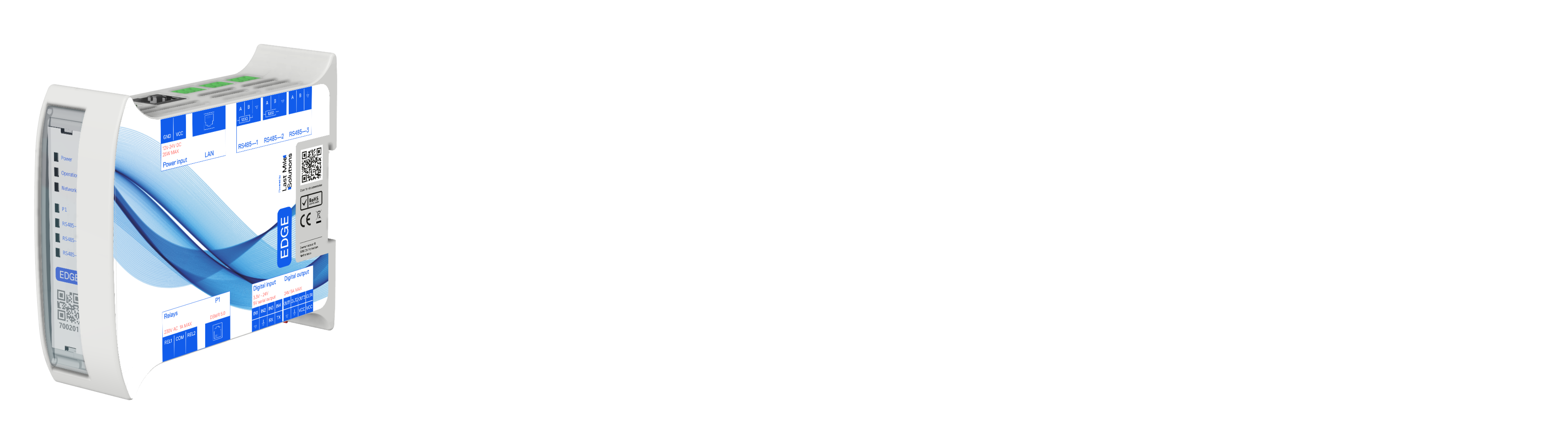
Connecting Peblar to Edge (Modbus, non-OCPP)
The Problem
Peblar requires a valid signed TLS certificate for Secure Websocket connections to the backoffice. Since Edge operates locally with self-signed certificates, Peblar cannot establish connections without certificate whitelisting support.
Modbus TCP Solution
Peblar supports Modbus TCP as an alternative smart charging interface. The chargepoint connects via Ethernet to Edge's network while maintaining direct OCPP communication with the backoffice at ws.evc-net.com. Edge controls load balancing through Modbus TCP.
Tested compatibility: Peblar firmware version 1.7.1+1+SHELL-1 and above.
Advantages
- Reliable load balancing via Modbus TCP with no constraints
Disadvantages
- Edge lacks data normally available through OCPP, preventing card priority assignment and operational logging
- Edge dashboard controls (start/stop, unlock) remain unavailable — these stay in EVC-Net
Hardware Installation
Peblar installs as a standalone EVC-Net device connected via Ethernet to Edge's network. Three connection methods exist:
- mDNS (recommended): Connect using chargepoint serial numbers like
PD224UA000440.lanwith mDNS-compatible routers - Static IP addresses: Configure on chargepoint directly
- Static DHCP lease: Configure on router instead
Peblar Configuration
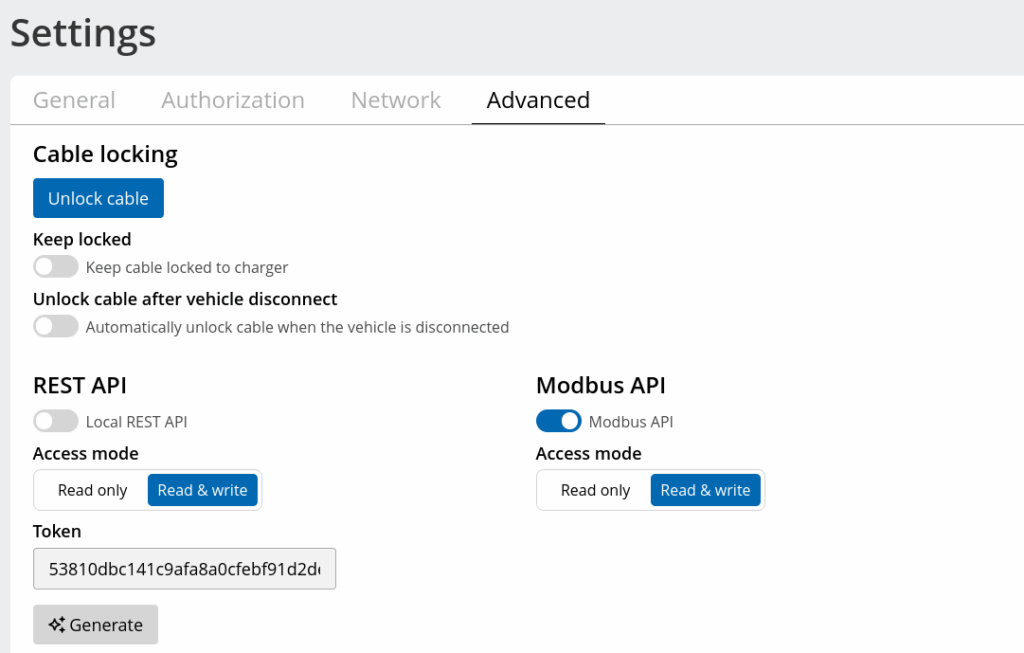
Enable the Modbus API through the Peblar web interface: Settings → Advanced, setting Access mode to "Read & Write."
Edge Configuration
- Access the management interface and connect to the Edge controller
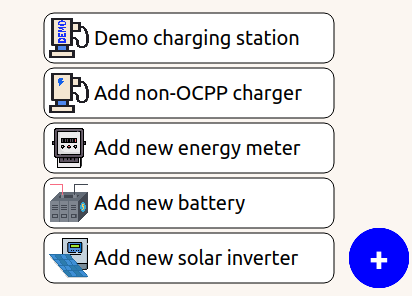
- In live-view, select the "+" icon and "Add non-OCPP charger"
- Choose "Peblar Modbus"
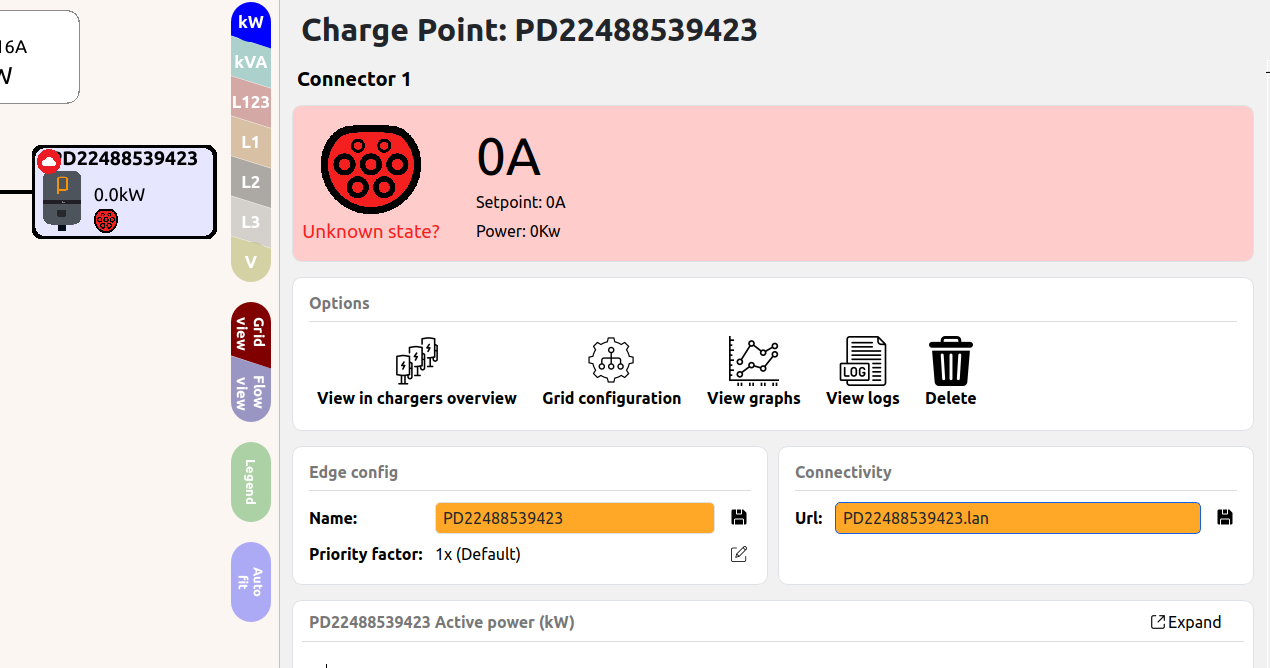
- Configure the setting URL with the peblars mDNS name, or IP address
- Optionally specify the OCPP communication ID/serial number as User identifier for easy access
Next Steps
Add remaining chargepoints, install energy meters if needed, and configure the grid normally.
Updated 6 months ago