Connect OCPP chargers to Edge
Edge automatically configures OCPP settings on supported chargepoints to enable optimal load balancing. Also any possible issues will be flagged with a self-test. The only manual configuration required is setting the backend URL so chargepoints can connect to Edge.
Prerequisites
- All chargepoints must already have existing connections on EVC-net
- All stations must be activated before Edge configuration
Make sure there are no active transactions on the station before connecting the station to Edge. Stop these transactions. Otherwise, they will be lost and cannot be billed.
Finding the Edge Connection URL
When Edge is installed in an existing network, a static Lease on the router is recommended. Otherwise if edge is installed with a standalone GSM router mdns can be used. Read more about this Here
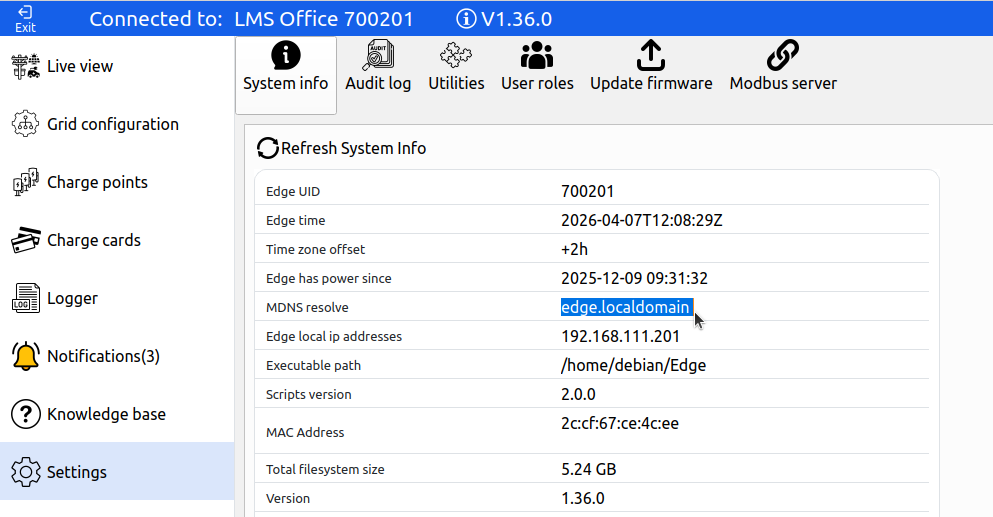
To obtain the Edge hostname: navigate to Settings to locate the mDNS resolution URL under "mdns resolve". The connection address will be either:
ws://edge.localdomainws://edge.lan
(depending on router type)
Changes on the chargepoint:
The only configuration step involves changing a single setting: the "endpoint/back-office/server/CPO URL". However, this setting name varies across different chargepoint manufacturers.
For Stations Already Connected to EVC-Net
- Use existing back-office options to locate settings labeled "Endpoint," "Back-office," or "Connection URL"
- Change the setting to the obtained connection URL
- Restart the chargepoint if necessary to establish connection
For Stations Not Yet Connected to Back-Offices
- Add and Verify the station is added to EVC-net
- Consult the chargepoint manual for configuration instructions
- Modify the "back-office" setting to the obtained connection URL
Updated 6 months ago