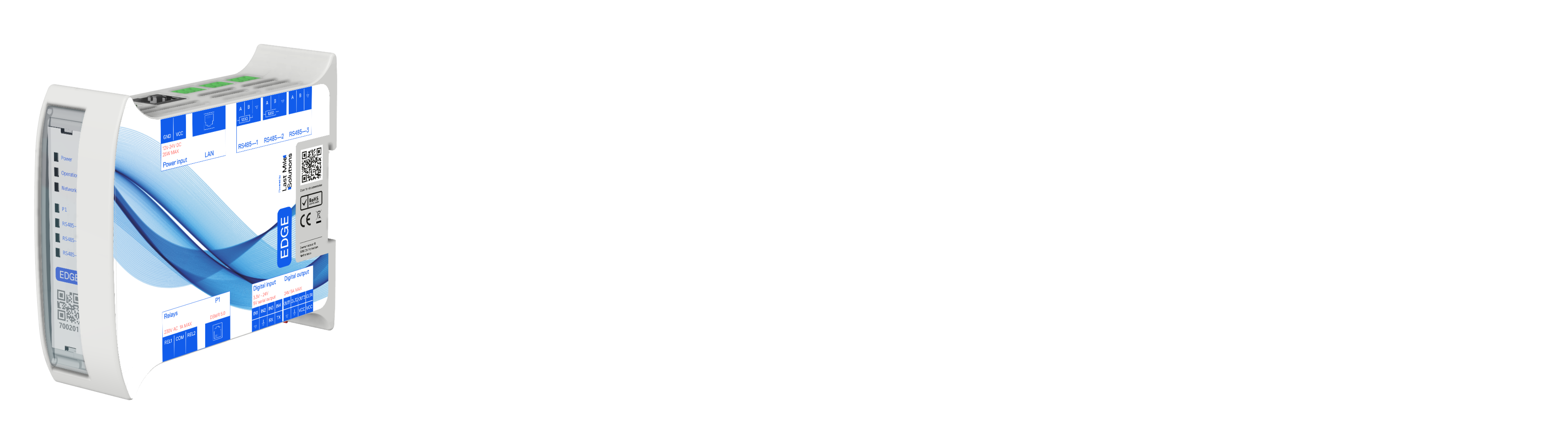
How to Configure a Battery in Edge
Connect a supported battery to Edge, choose the right control strategy, and configure standby behavior and advanced schedules.
When you connect a battery (energy storage system) to Edge, it becomes part of the load balancer. Depending on the strategy you choose, Edge can:
- Self-consumption — absorb excess solar and discharge to cover building loads, steering grid current toward zero
- Peak-shaving — discharge the battery to keep grid current within limits, protecting fuses and reducing demand charges
- Manual/API — control the battery directly for testing or external integration
Edge supports batteries over Modbus RTU and Modbus TCP. The following battery types are currently supported:
| Battery type | Segment | Protocol |
|---|---|---|
| Deye Hybrid Inverter (LV) | Home | Modbus RTU / TCP |
| Growatt SPH | Home | Modbus RTU / TCP |
| Altilia | Home | Modbus RTU / TCP |
| SmartGrid | Commercial | Modbus TCP |
| Fenecon | Commercial | Modbus TCP |
| HoyUltra | Commercial | Modbus TCP |
| Sungrow LC300 | Commercial | Modbus TCP |
If your battery is not listed, please request integration.
Even if you're battery is already in the list you can still contact us for a verification, it sometimes happens that the battery Modbus maps between firmware versions have slightly changed or configuration changes need to be done.
Step 1: Add the battery in Edge
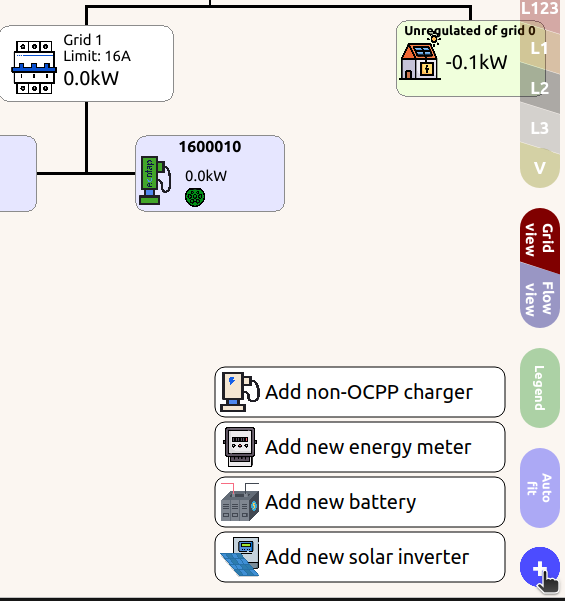
From the EdgeManager live view, click the + icon in the bottom-left corner and select Add new battery. Select your battery model, give it a name, and configure the Modbus connection the same way you would add an energy meter or add a solar inverter.
For Modbus TCP: your battery must have a static IP address or a static DHCP lease. If it is in DHCP mode, the IP address may change after a power cycle.
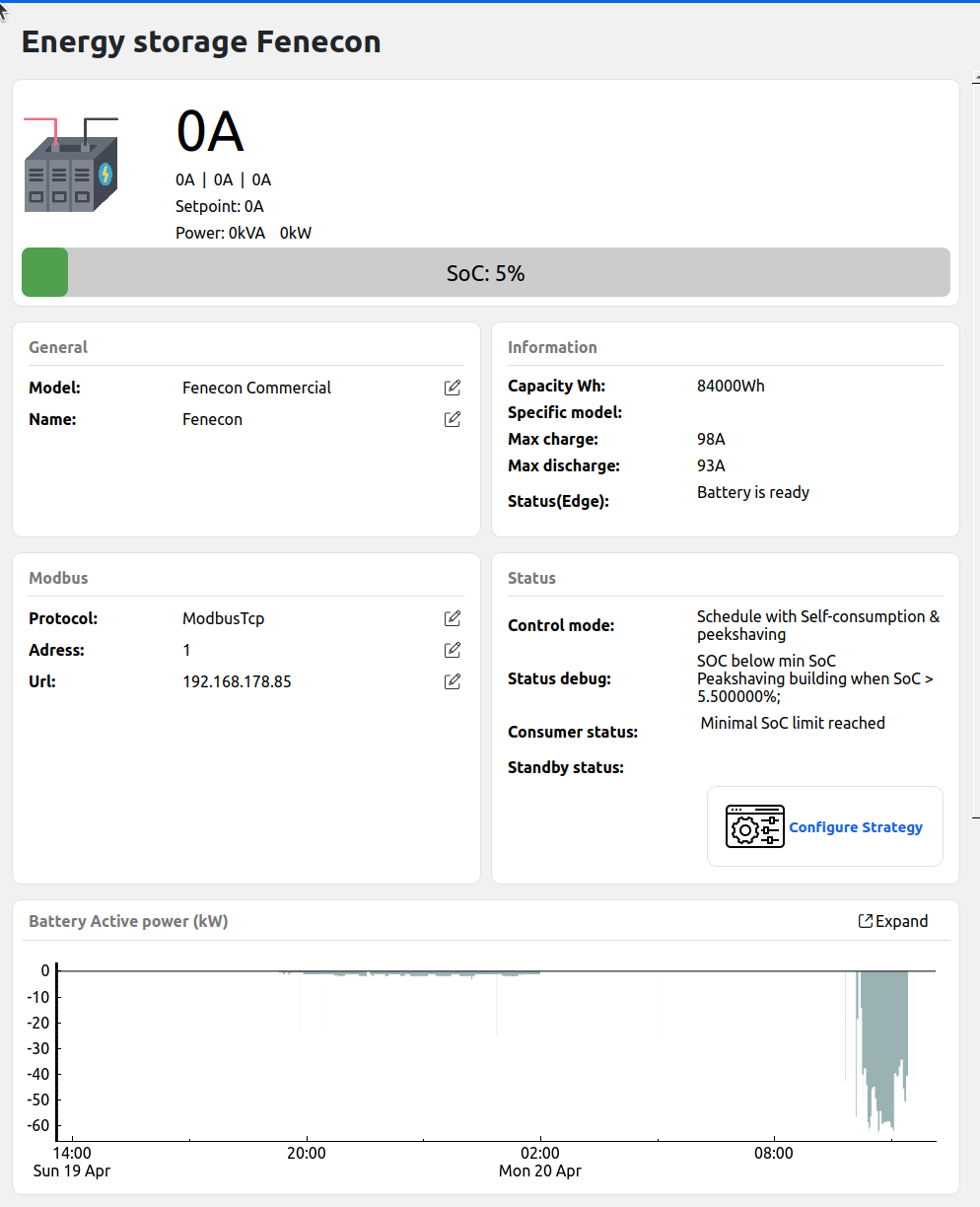
When the connection is established, the live view shows the battery with its current state — current, power, setpoint, and State of Charge (SoC). Error notifications disappear once communication is confirmed.
Step 2: Choose a battery strategy
The battery strategy determines how Edge controls the battery. Open the battery settings, click the Battery Strategy tab, and select a strategy from the dropdown.

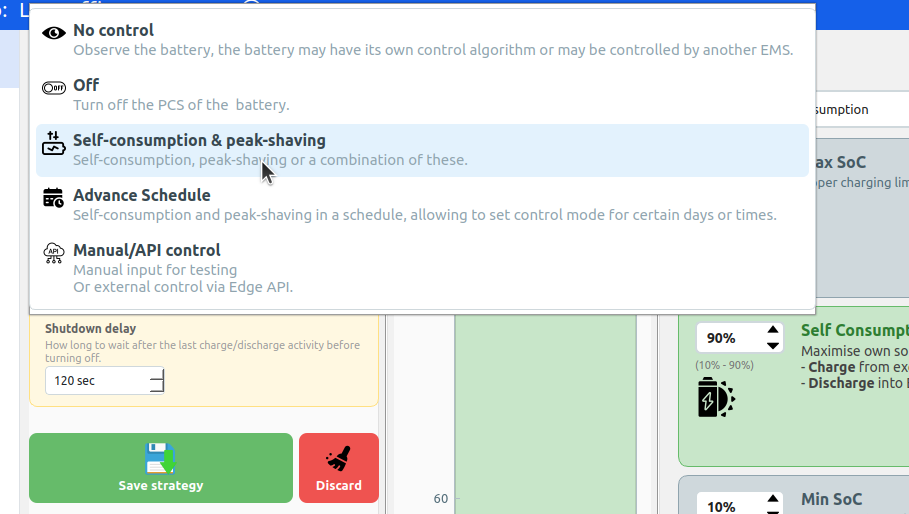
The available strategies depend on your battery's capabilities. The sections below explain each strategy in detail.
Self-consumption and peak-shaving
Strategy: Self-consumption & peak-shaving
This is the most common strategy. It uses the battery's State of Charge (SoC) to decide what the battery should do at any given moment. A full battery and a nearly empty battery need different control behavior.
The concept: SoC zones
The battery's SoC range (0–100%) is divided into zones. Each zone triggers a different behavior. These zones help you reserve energy for the moments that matter most and avoid keeping the battery at very high or very low SoC for too long. You control where one zone ends and the next begins by setting the SoC boundary percentages.
Think of it as a stack of colored bands. As the battery charges, it moves upward through the zones. As it discharges, it moves downward. The zone the battery is currently in determines what Edge does with it.
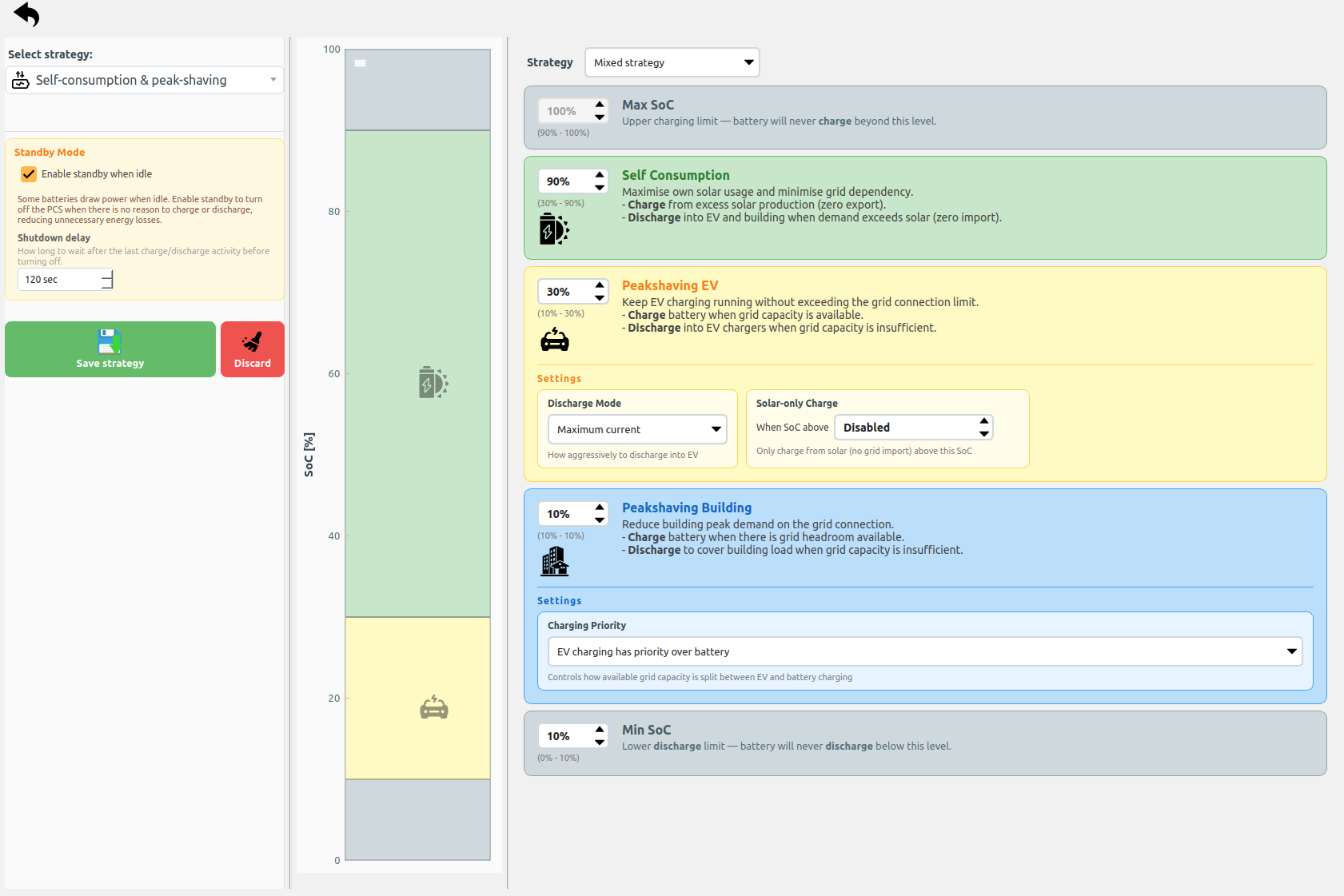
From top to bottom:
Max SoC (gray, top) — The battery is full enough. Edge stops charging here to reduce degradation — most battery chemistries wear faster when they stay at very high SoC. You set this boundary to limit how far the battery charges (e.g. 90%). The battery can still discharge from this zone.
Self-consumption (green) — Edge reads the grid meter and continuously adjusts the battery to keep the grid current at zero. When solar produces more than the building consumes, the surplus flows into the battery. When the building needs more than solar provides, the battery discharges to cover the gap.
Peak-shaving EV (yellow) — The battery switches from self-consumption to peak-shaving. It discharges to free up grid capacity for EV charging. When there is surplus energy, it can charge instead. This zone is designed for sites where EV charging is the primary concern — the battery extends the effective grid capacity so more EVs can charge simultaneously.
Peak-shaving Building (blue) — Similar to Peak-shaving EV, but with lower priority. At this SoC level, the battery is getting low, so Edge becomes more conservative with discharging. This protects the remaining energy for essential building loads.
Min SoC (gray, bottom) — The battery is nearly empty. Edge stops discharging here to reduce degradation — deep discharges significantly reduce battery lifespan. A typical lower limit is 10%. The battery can still charge from this zone.
How to configure it
You configure the strategy by setting the SoC boundary for each zone. For example:
- Self-consumption at 90% — the battery operates in self-consumption between 100% and 90%
- Peak-shaving EV at 50% — between 90% and 50%, the battery helps peak-shave for EVs
- Peak-shaving Building at 20% — between 50% and 20%, conservative peak-shaving
- Min SoC at 10% — below 10%, discharging stops
You can disable a zone by collapsing its boundaries. For example, setting Peak-shaving EV and Peak-shaving Building both to 10% (equal to min SoC) makes the battery operate in self-consumption only — from max SoC all the way down to min SoC, with no peak-shaving behavior.
Zone settings
Each zone has additional settings that fine-tune its behavior.
Peak-shaving EV zone:
| Setting | Description |
|---|---|
| Discharge mode | How aggressively the battery discharges for EV charging: Maximum current gives full power to EVs, At least 6A and At least 10A set a weighted priority factor that balances battery discharge against other grid needs. |
| Solar-only charge above SoC | Above this SoC threshold, EVs are restricted to solar power only — no grid charging. Set to Disabled to always allow grid charging regardless of battery SoC. |
Peak-shaving Building zone:
| Setting | Description |
|---|---|
| Charging priority | Who gets grid capacity first: EV charging has priority (EVs first, battery gets the remainder), EV at 6A, remainder to battery (each EV gets 6A, the rest goes to the battery), or Battery charging has priority (battery charges first, EVs get what is left). |
Advanced schedule
Strategy: Advanced schedule
This strategy extends self-consumption and peak-shaving with a day-of-week and time-of-day schedule. You can define different SoC zone configurations for different times and days.
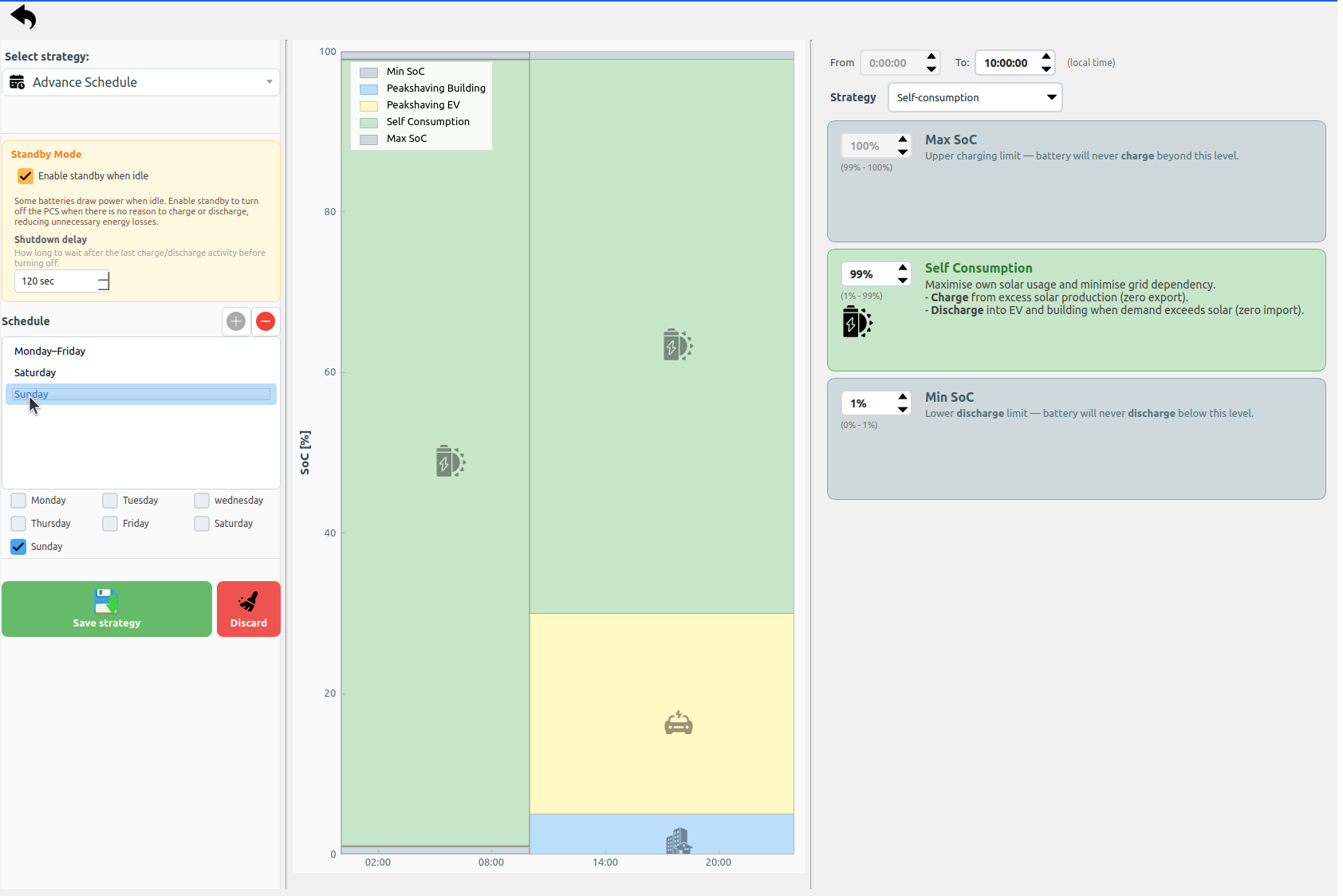
Setting up a schedule
- Select Advanced schedule from the strategy dropdown
- Click Add schedule day to create a new day schedule
- Assign weekdays to the schedule using the checkboxes (Mon–Sun)
- Add time slots within each day — each time slot has its own SoC zone configuration
- Configure the SoC zones for each time slot, exactly as described in the self-consumption and peak-shaving section above
All seven weekdays must be assigned to a schedule before you can save. If any day is unassigned, the save button is disabled.
Use cases for scheduling:
- Night charging: Set a low min SoC overnight with force-charge enabled, so the battery charges from cheap night tariffs
- Morning peak: Set aggressive peak-shaving zones during morning rush hours
- Weekend: Use a simpler self-consumption-only configuration on weekends when EV demand is low
Manual / API control
Strategy: Manual/API control
This strategy disables automatic control and lets you set the battery setpoint directly. Use it for testing, commissioning, or external control via the Edge REST API.
Other strategies
No control
The battery is monitored but not controlled by Edge. Use this when the battery has its own control system or is managed by another EMS. Edge still reads SoC, current, and power for visualization and logging.
Off
Turns off the battery's power conversion system (PCS). This option appears only for batteries that support off-mode.
Forced off-grid
Forces the battery into off-grid (islanding) mode. The battery operates autonomously as a grid-forming inverter. This option appears only for batteries that support this capability.
Standby mode
When the battery has no reason to charge or discharge for an extended period, Edge can put it into standby to reduce hardware wear. In standby, the inverter powers down and only wakes when there is an incentive to charge or discharge again.
Configuring standby
| Setting | Description |
|---|---|
| Enable standby when idle | When enabled, Edge powers down the battery after a period of inactivity. |
| Shutdown delay | Seconds of idle time before entering standby (default: 300 seconds / 5 minutes). Range: 0–3600 seconds. |
Standby is only available on batteries that support off-mode. If your battery does not support it, the standby settings are not shown.
When the load balancer assigns current to the battery again (above 1A), it automatically wakes from standby. There may be a short startup delay while the inverter powers on.
Related articles
- Add a Solar Inverter to Edge — connect solar for self-consumption and curtailment
- Configure Export Limits — set export limits when using solar or battery storage
- Configure the Grid — add batteries, chargers, and meters to your grid
- Solar Charging — use solar power to charge EVs
Updated 3 months ago