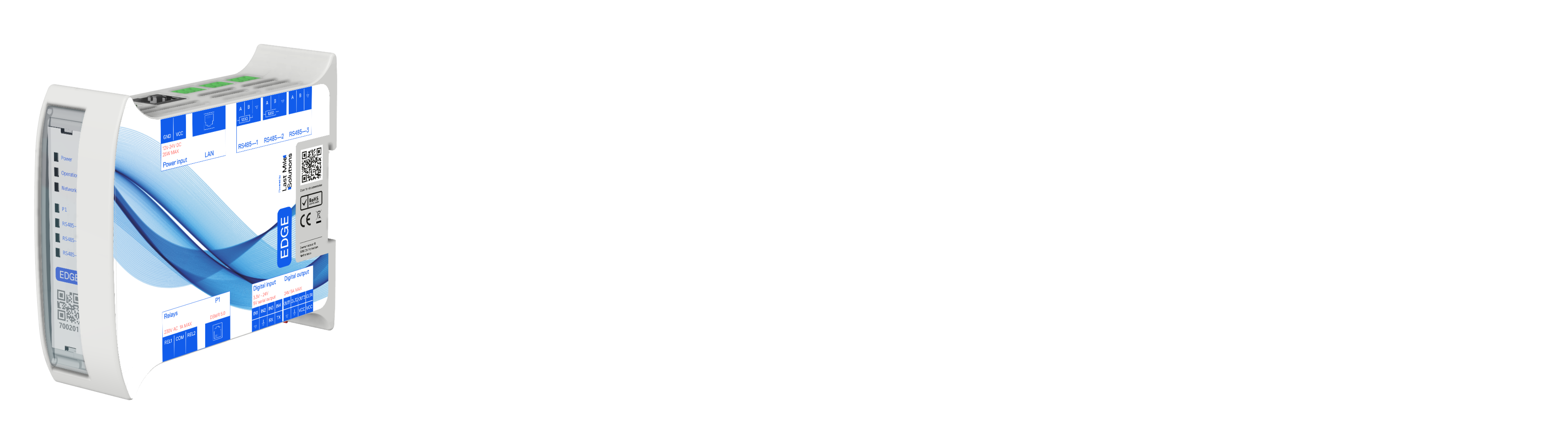
Modbus TCP Gateway Configuration
Edge supports Modbus TCP for scenarios where installing a Modbus cable to energy meters isn't feasible but Ethernet is available. The recommended gateway is the Planet MG-110, which connects to Modbus RTU energy meters and interfaces with Edge via Modbus TCP.
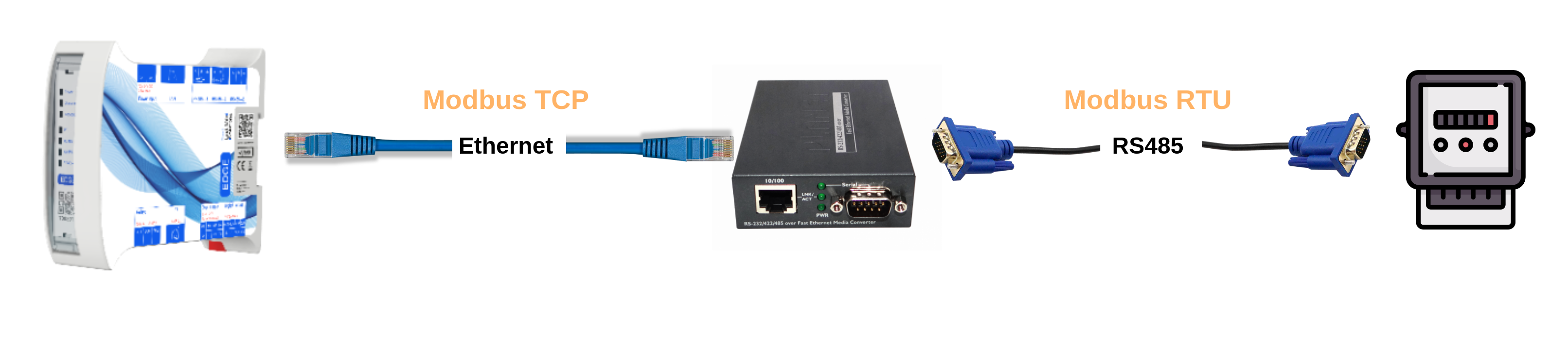
Step 1: Install the MG-110
- Position the Planet MG-110 near the RTU energy meter
- Power using the included 12VDC adapter
- Connect via Ethernet on the same network as Edge
- Use the included DB9 terminal block adapter for meter connection
- Connect output 4 (d-) as Modbus A and output 3 (d+) as Modbus B with 120Ω termination resistor
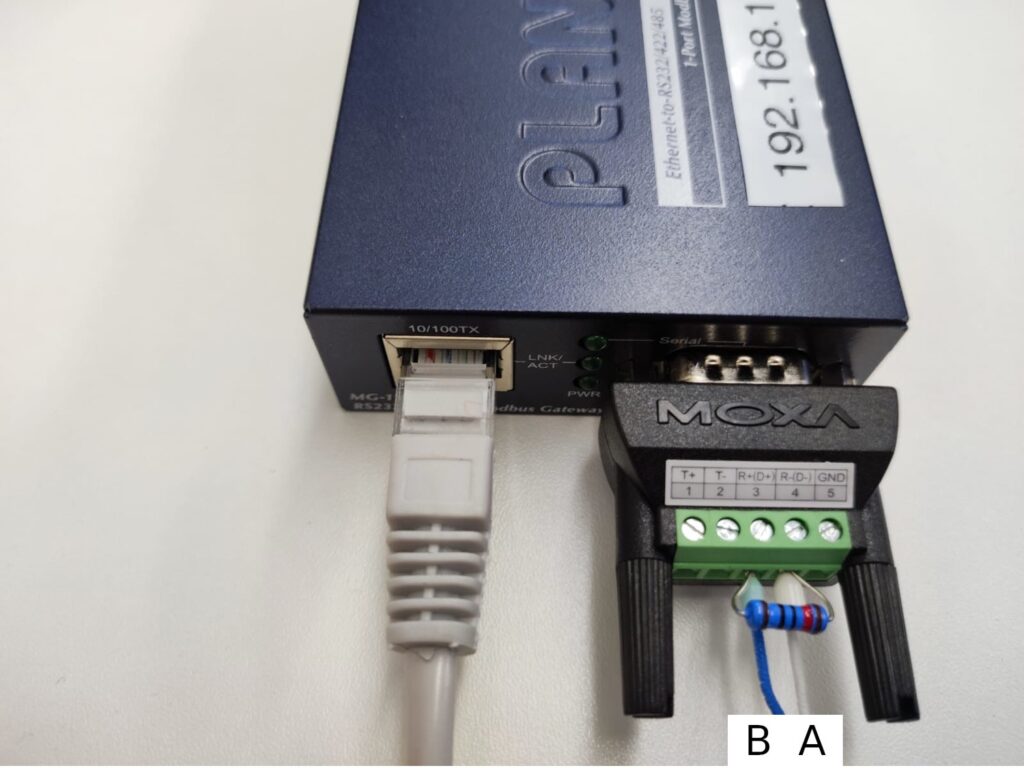
Step 2: Configure the MG-110
-
Ensure your computer shares the 192.168.0.0 subnet (MG-110 defaults to static IP 192.168.0.100)
-
Access the configuration page by entering 192.168.0.100 in a browser
-
Login with credentials: admin/admin
-
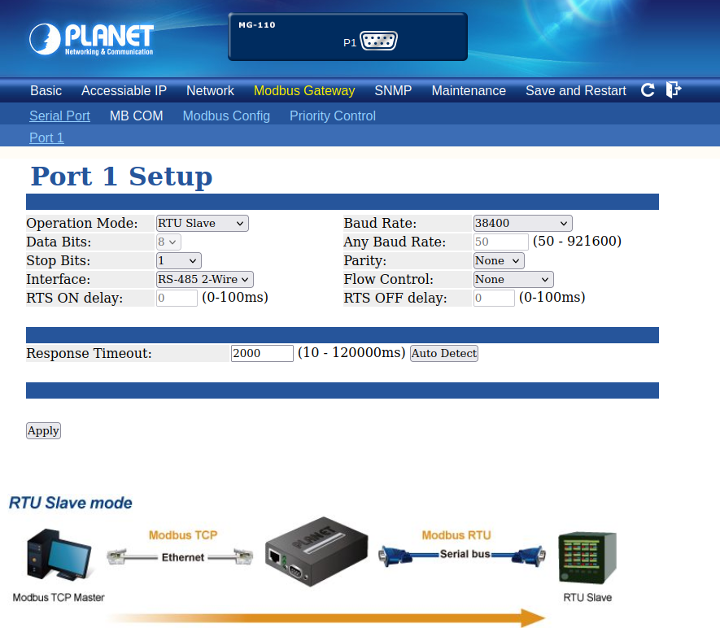
Navigate to Modbus gateway > Serial > port 1 and configure:
- Mode: RTU slave
- Interface: rs485-2wire
- Baud Rate: match your energy meter
-
Optionally adjust Network parameters (DHCP/Static IP) in the Network tab
-
For Planet MG-110 specifically, modify:
- Modbus gateway > Modbus config > id mapping: Enable Auto Device Routing
- Modbus gateway > Modbus config > Parameters: Enable TCP Exception
-
Click Apply, then Save and Restart (approximately one minute)
Step 3: Connect Edge to the Modbus Gateway
With this gateway installed your energymeter now behaves like a modbus-TCP Energymeter. Add the energy meter in EdgeManager and set the Protocol to Modbus TCP, entering the gateway's IP address as the URL. See Configure the Energy Meter for the full configuration steps.
Related Articles
Updated 6 months ago