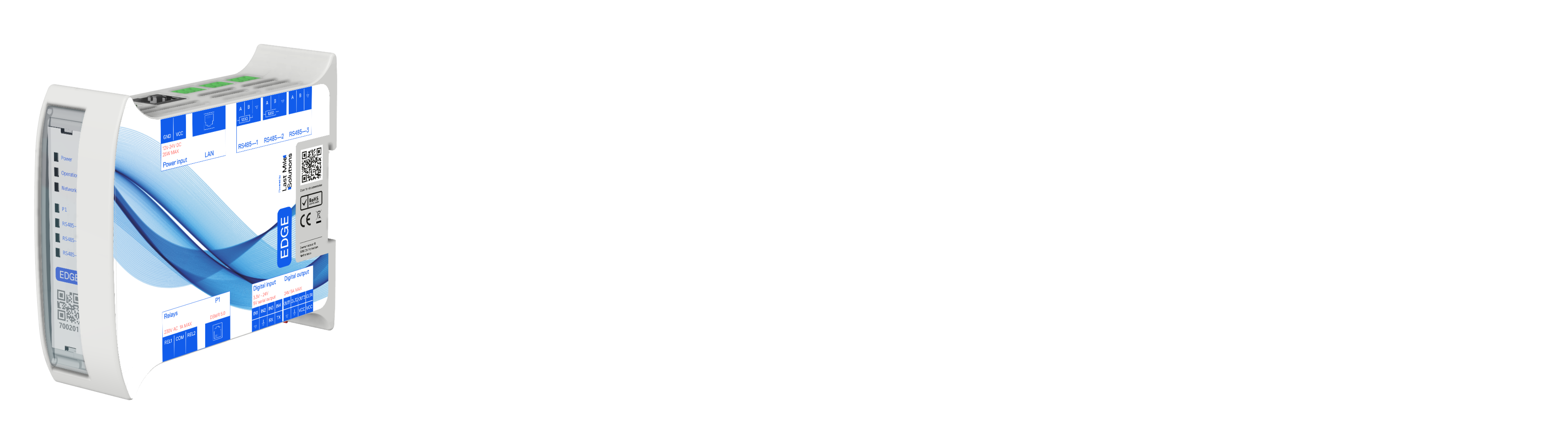
Getting Started
This guide walks you through everything needed to get Edge operational — from preparation to a live site. Pick the checklist that matches your role:
- Project Managers — verify compatibility and site readiness before the installer arrives.
- Installers — physical installation, configuration, and go-live steps.
New to Edge? See the About Edge overview for what it does and what's supported.
Checklists
For Project Managers — Preparation Checklist
Before sending an installer to site, verify these items are in order.
-
Verify chargepoint compatibility — confirm that your chargepoints are supported by Edge. Most OCPP 1.6 chargepoints work out of the box; some brands require alternative connection methods.
Charging Stations -
Verify site requirements — the site needs:
- Ethernet connections to all chargepoints
- Internet access via 4G router or company network
- A dry location to mount Edge (DIN rail or screw-mounted)
-
Verify energy meter compatibility — confirm that your energy meter model is supported via Modbus RTU or TCP. If your meter is not yet supported, request integration ahead of time.
Supported Energy Meters | Request Integration -
Prepare the technical diagram — locate or create the electrical diagram for the site. The installer will need it to determine meter placement and cable routing.
Physical Installation -
Decide on network connectivity — Edge needs an internet connection. If no 4G router was ordered, verify the private network meets requirements.
4G Router vs Private Network | Network Requirements
If you ordered a 4G router, use a public SIM card. VPN SIM cards are not supported and Last Mile Solutions cannot provide support for VPN-based connections.
For Installers — On-Site Guide
Follow these steps to install and configure Edge on location.
Physical installation
-
Mount Edge and wire the network — connect Edge to chargepoints and internet according to the site diagram.
Physical Installation -
Wire energy meters — connect meters via Modbus RTU or TCP. Follow the wiring guides for CT placement, daisy-chaining, and termination.
Energy Meter Installation
Configuration in EdgeManager
-
Connect to EdgeManager — open the web interface, log in with your EVC-net credentials, and set the Edge name.
Connect and First Login -
Configure energy meters — assign GUARD or CONSUMER roles and set Modbus addresses.
Configure an Energy Meter -
Connect chargepoints — pick the connection method for your charger type:
| Charger type | Connection method | Guide |
|---|---|---|
| Any OCPP 1.6 charger | WebSocket (Ethernet) | OCPP Setup |
| Ecotap master-slave | LMS protocol | Ecotap Setup |
| EVBox G2 / G3 | RS485 (non-OCPP) | EVBox Setup |
| Peblar | Modbus TCP (non-OCPP) | Peblar Setup |
| Not listed | Contact LMS | Request Integration |
-
Configure the grid — set fuse limits, assign meters and chargers to grids.
- Simple Grid Example — single grid, single fuse, straightforward setup
- Advanced Grid Example — sub-grids, multiple cable runs, distributed chargers
-
Optional: add solar or battery assets
Verify and go live
-
Check the live view — open EdgeManager and verify all assets show green. No red warnings or communication errors.
-
Test a charge session — plug in a vehicle and confirm the load balancer responds. Watch the live view to see current distribution adjust.
-
Set up backups and user access
- Backups — automatic and manual backup configuration
- User Access Management — assign roles to other users
Installation Video
Watch the full installation walkthrough before heading to site.
Also available in French, Dutch, German, and Polish.
What's Next
Once your site is live, explore these features:
- Time of Use — schedule variable grid limits for opening hours or capacity contracts
- Priority Charging — prioritize specific cards, chargers, or sessions
- Solar Charging — optimize self-consumption with solar surplus
- REST API — integrate Edge with external systems
- Modbus Server API — third-party integration via Modbus registers
Updated 6 months ago