How to Configure a High Voltage Energy Meter
Edge's load balancing reasons in terms of current at a nominal 230 V per phase. On most sites the grid meter sits on the low-voltage side, so its readings map to 230 V directly. On installations where the metering point is on the medium/high-voltage side of a transformer — or where the meter reads through voltage transformers (VTs) — the measured voltage is not ~230 V and the per-phase current is small. Feeding those raw numbers to the load balancer would give the wrong available current.
The High Voltage (conversion) meter type solves this. It wraps a normal (source) energy meter and presents normalized values to the rest of Edge:
- Voltage is reported as a fixed 230 V on every phase (a reference, not a measurement).
- Current per phase is re-derived from the source meter's apparent power, so that 230 V × current reproduces the true apparent power. Because meters expose apparent power only as a total, Edge distributes it across the phases in proportion to each phase's measured current.
- Active power, reactive power, apparent power and energy (Wh import/export) are passed through from the source meter unchanged.
The result is a meter that behaves like a standard 230 V meter for load balancing, while the underlying device keeps measuring at its real voltage level.
The conversion only normalizes how voltage and current are presented. It does not apply the transformer or CT/VT ratio for you — configure those ratios on the source meter so that its power and energy readings already reflect true primary-side values.
Why this matters — a worked example
Picture a site fed through a 10 kV connection with a 1000 A limit configured in Edge. At a moment when 700 kW is flowing (assume unity power factor, so kW ≈ kVA):
- Balanced over three phases, that is ~233 kW per phase.
- The meter sits on the 10 kV side, so the current it actually measures is about 233 kW ÷ 10 kV ≈ 23 A per phase.
If Edge load-balanced on that raw reading, it would compare 23 A against the 1000 A limit, conclude there is roughly 977 A of headroom, and keep ramping up charging — even though the site is already drawing 700 kW.
The High Voltage (conversion) meter normalizes to 230 V, so the same 233 kW per phase becomes:
233 kW ÷ 230 V ≈ 1014 A per phase
Now Edge sees ~1014 A against the 1000 A limit, recognizes there is no headroom, and limits charging correctly. Power and energy are still reported as the true 700 kW — only the voltage/current pair is rescaled so that current-based load balancing is meaningful.
Step 1: Physical Connection
Install and connect the physical energy meter that measures your high-voltage point, following the energy meter installation guide. Set any CT/VT ratios on the meter itself so it reports true power and energy. The meter must be one of the supported energy meters.
Step 2: Add the High Voltage meter in Edge manager
From the Live view, click the + button in the bottom-right corner to add a new energy meter, and select the model High Voltage(conversion).
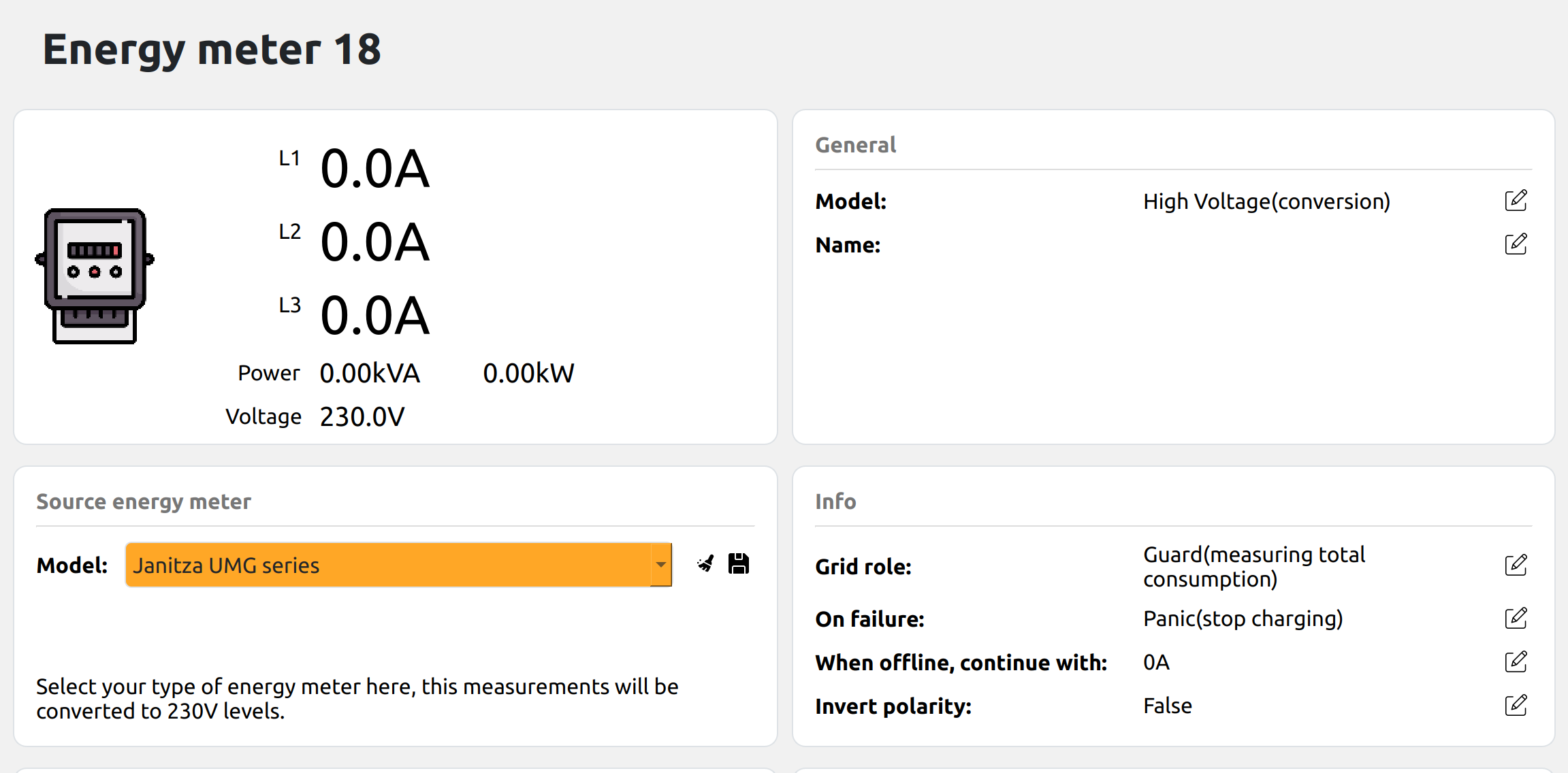
Step 3: Configure the source meter
Click the new meter to open its dashboard. A Source energy meter section lets you configure the actual physical meter that does the measuring — its model and Modbus connection, exactly as for a standard energy meter.
- Model — the physical meter model measuring the high-voltage point
- Protocol — Modbus RTU or Modbus TCP, with the matching interface / address / connection settings
If no source meter is configured, Edge falls back to a default internal meter profile and readings will not be meaningful. Always configure the source meter that matches your hardware.
Step 4: Validate
Once connected, the Live view shows power flowing and error notifications clear. The meter's voltage reading will show the nominal 230 V per phase by design; the real measured voltages are logged separately (as original voltage L1/L2/L3). Confirm that power and energy match your expectation for the high-voltage point.
Related Articles
Updated about 1 month ago